WebP vs JPG vs PNG: which image format should you use?
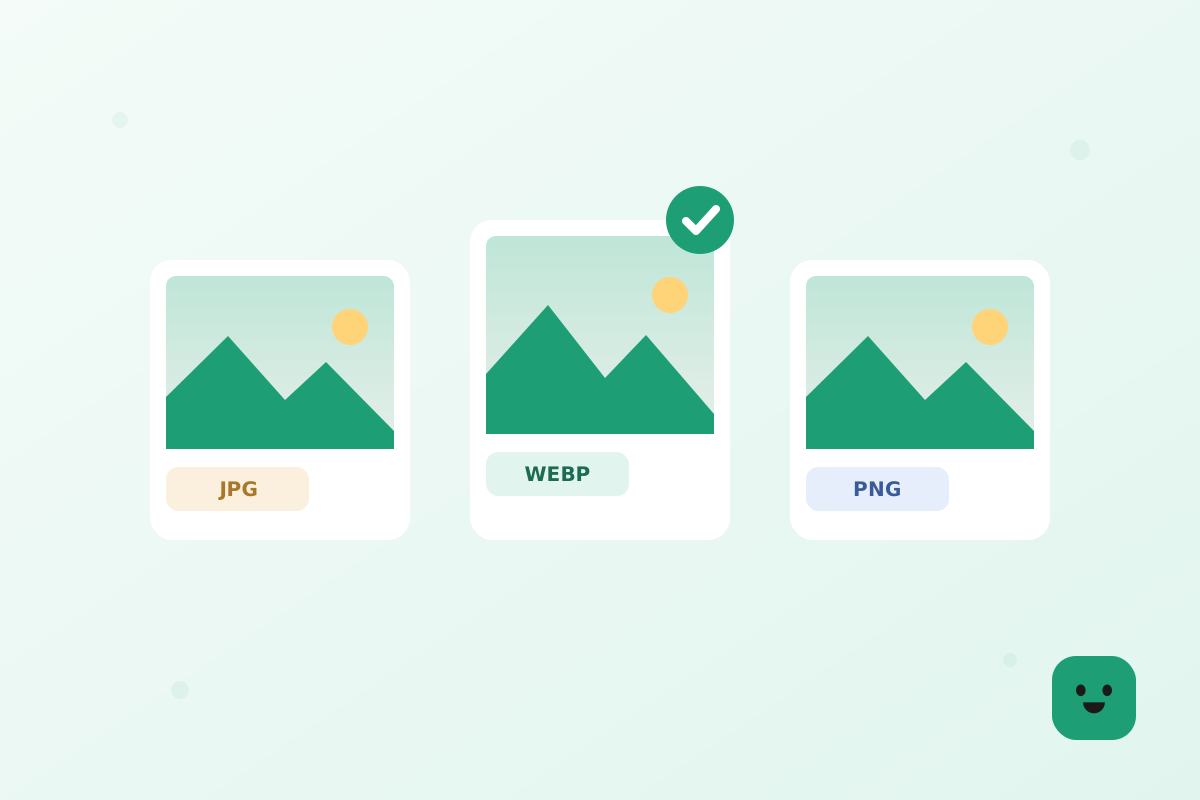
Use WebP for images on a website, JPG for photos you send, print or upload to forms, and PNG for screenshots, logos and anything with sharp edges or transparency. WebP is usually the smallest of the three, but JPG and PNG still open in more places, so the best format depends on where the image is going. Below is how the three compare on size and quality, where each one works, and how to convert between them in your browser.
WebP vs JPG for photos
JPG has been the default format for photos since the early 1990s. It uses lossy compression: when you save, it throws away detail the eye is not good at seeing, and a quality setting decides how much goes. That is why a phone photo can be a few megabytes instead of the 30 or 40 MB it would take uncompressed, and why every camera, phone, browser, printer and photo app on earth can open a JPG.
WebP was released by Google in 2010 as a format for the web. Its lossy mode does the same job as JPG but with newer techniques, so at the same visual quality the file comes out smaller. Google’s own figure is that lossy WebP images are 25 to 34 percent smaller than comparable JPGs. In practice that means a 400 KB photo on a web page can become roughly 260 to 300 KB without anyone being able to tell the difference on screen.
So for photos, the question is not which looks better, because at sensible settings both look the same. It is which is smaller and which opens where you need it. WebP wins on size; JPG wins on reach. If the photo is going onto your own website, WebP is the better choice. If it is going to a person, a printer or an upload form, JPG is the safer one. You can turn a JPG into WebP in seconds with the JPG to WebP converter, and back again just as easily.
WebP vs PNG for graphics and transparency
PNG is lossless. Every pixel you save is the pixel you get back, which is exactly what you want for screenshots, logos, icons, diagrams and text, where JPG compression would leave blurry halos around sharp edges. PNG also supports transparency, so a logo can sit on any background without a white box around it. The cost is size: PNG is very heavy for photos, often several times the size of a JPG of the same picture.
WebP covers both of PNG’s jobs. It has a lossless mode, and Google reports that lossless WebP files are 26 percent smaller than PNGs. It also supports transparency, in both lossless and lossy mode. Lossy WebP with transparency is where the gap gets large: Google says it typically gives files three times smaller than PNG, because the soft parts of the image can be compressed while the transparent area stays clean.
For a website, then, a transparent PNG logo or a product photo on a clear background is a good candidate for WebP. Our PNG to WebP converter keeps the transparency and runs entirely in your browser, which makes it easy to test the difference on your own files before you switch. Keep the original PNG as your master copy for editing, since a design file is easier to change in a lossless format.
WEBPTry the toolPNG to WebPOpenFile size: how much smaller WebP really is
Across typical images, WebP photos come out about 25 to 35 percent smaller than JPGs at the same visual quality, and WebP graphics about 25 to 50 percent smaller than PNGs. Those are the ranges we use on our converter pages, and they line up with Google’s published figures of 25 to 34 percent against JPG and 26 percent for lossless WebP against PNG. The upper end of the PNG range comes from images that can use lossy WebP, such as photos and soft gradients.
The exact saving depends on the picture. Smooth areas like sky, skin, walls and blurred backgrounds compress very well in WebP. Busy texture such as leaves, gravel, fabric or a crowd saves less. Flat graphics with a handful of colors are already small as PNG, so converting a tiny icon may only save a few kilobytes, while a large screenshot or a photo saved as PNG can shrink dramatically.
It also matters what you are comparing against. A JPG that was already saved at low quality has little left to give, and converting it to WebP will save less than the headline numbers. For the biggest and most honest saving, convert from the original file, not from a copy that has already been compressed. If file size is your only goal and the format must stay the same, our guide to reducing photo file size covers compression and resizing without changing format.
Where each format works
JPG and PNG open almost everywhere: every browser, every operating system’s photo viewer, email apps, word processors, print shops, social networks and the upload forms of banks, schools and government sites. If you do not know where an image will end up, either of these is the safe choice, and that is still their biggest advantage.
WebP is supported by all current versions of Chrome, Edge, Firefox, Opera and Safari, so on the web it is effectively universal for today’s visitors. One detail from Mozilla’s documentation: on a Mac, Safari needs version 14 or later and macOS Big Sur or newer to show WebP. Outside the browser support is less even. Some older desktop editors, office programs, upload forms and print services still refuse WebP or treat it as an unknown file.
That is why a WebP you saved from a website sometimes will not open where you need it. The fix is a quick conversion: our WebP to JPG converter turns it into a JPG that opens anywhere, and the WebP to PNG converter keeps transparency and every pixel when you need an exact copy for editing.
When to keep JPG or PNG
Keep JPG for photos you share with people, print, attach to email or upload to a form. The recipient’s device will open it, the print shop will accept it, and form checks that only list JPG and PNG will not turn it away. JPG is also the right choice for your photo archive when you want files any future app can read.
Keep PNG for anything you will edit again, for screenshots with text that must stay crisp, and for graphics you hand to someone else to use in their own software. PNG’s lossless storage means repeated edits never wear the image down, while repeated JPG or lossy WebP saves slowly lose detail. A good working rule is to keep the PNG as the master and export WebP copies for the website.
How to convert between them
All the conversions run in your browser, so the images are never uploaded. Pick the converter for the direction you need, drop up to 30 files at once, and download them one by one or together as a ZIP. Your original files are not changed; you always get new copies.
Two things to know before you convert. Turning a transparent PNG or WebP into JPG fills the transparent parts with white, because JPG has no transparency. Our PNG to JPG converter does exactly that, which is usually what you want for a form or a document. And converting a JPG to PNG will not bring back detail the JPG already discarded; it only makes the file larger, so do it only when a program insists on PNG.
In short
WebP is the smallest of the three and the best choice for images on a website. JPG is the most widely accepted format for photos and the safest for anything that leaves your hands. PNG is the lossless choice for screenshots, graphics and master files. Convert in whichever direction the destination asks for, always starting from the best copy you have.
- WebP for websites: about 25-35% smaller than JPG and 25-50% smaller than PNG at the same quality.
- JPG for photos you send, print or upload: it opens everywhere.
- PNG for screenshots, logos and files you will edit again: lossless and supports transparency.
- WebP supports transparency too; converting to JPG fills transparent areas with white.
- Convert from the original file, never from an already compressed copy.