HEIC vs JPG: why your iPhone photos won’t open (and how to fix it)
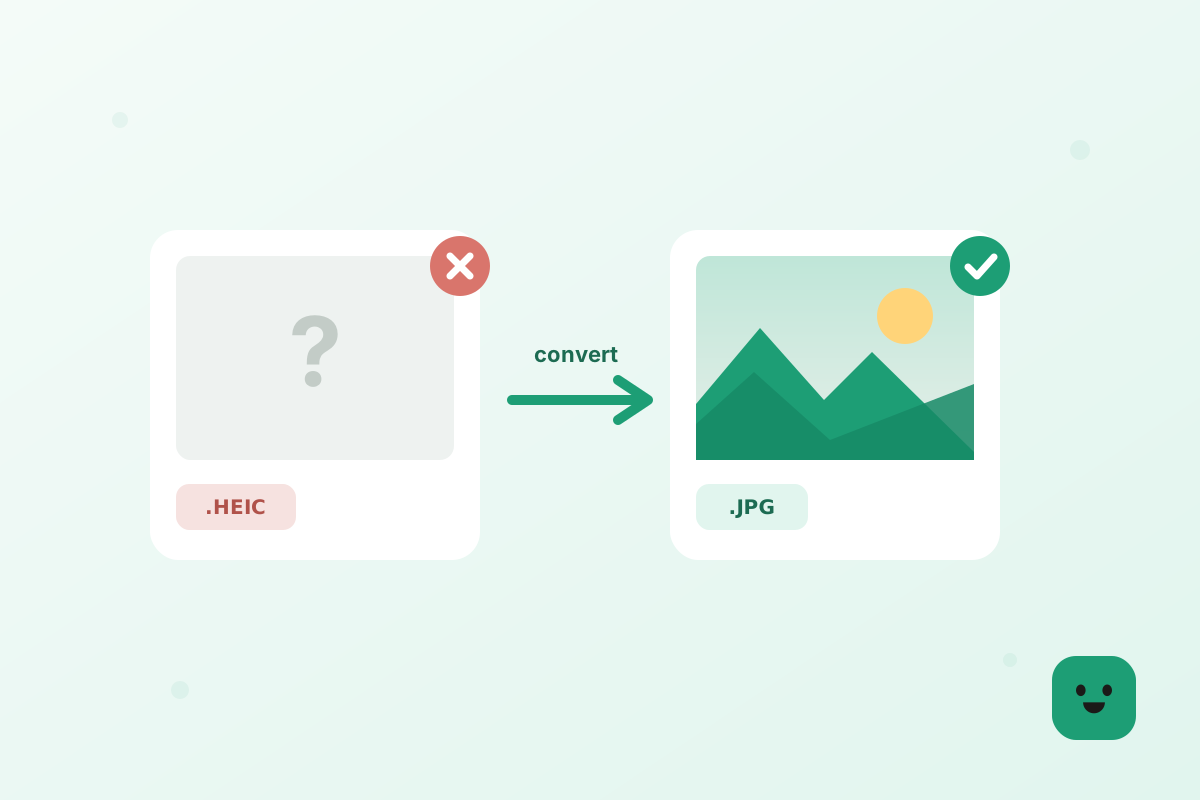
Your iPhone photo will not open because it is a HEIC file, and the quickest fix is to convert it to JPG, which opens on every device ever made. It is not a broken file and you have not done anything wrong — it is simply a format Apple switched to in 2017 that the rest of the computing world has been slow to catch up with. Below is what HEIC actually is, exactly why Windows and so many apps choke on it, which sites reject it outright, and how to stop your iPhone producing it in the first place.
What is HEIC, and why does your iPhone use it?
HEIC is the file format iPhones have used by default since 2017. It is Apple’s take on HEIF, a modern way to store photos that keeps roughly the same quality as a JPG in about half the space. On your phone that is great, you fit twice as many photos on the same storage and never notice a difference.
The catch is that HEIC is newer and less widely supported than JPG, the format that has been the universal standard for decades. So the photo looks perfect on your iPhone and then trips up the moment it lands somewhere else.
It is worth knowing that a HEIC file is not really a single picture. The container can hold a whole burst of frames, depth information, Live Photo video and edit history all in one file. That flexibility is exactly why Apple chose it, and also exactly why simpler software that expects one image per file has such a hard time reading it.
Why HEIC won’t open on Windows, and what to do about it
Windows does not ship with HEIC support built in, and the reason is licensing rather than laziness. HEIC files are compressed with HEVC, the same patented codec used for 4K video, and the patent pool charges per device. Microsoft chose not to fold that cost into every copy of Windows, so the decoder sits behind a separate download instead.
The result on your PC is one of a few familiar symptoms. File Explorer shows a blank white thumbnail instead of a picture. Double-clicking opens the Photos app to an error that says the file format is unsupported. The file appears to have zero preview in an email client, or a website upload form quietly rejects it. In every one of those cases the photo itself is perfectly fine — only the software reading it is missing a piece.
You have two ways out. The first is to install the codec: search the Microsoft Store for the HEIF Image Extensions, which are free, and pair them with the HEVC Video Extensions, which usually cost a small fee. Windows will then show HEIC files natively. The catch is that this only fixes your own PC, not the PC of whoever you send the photo to next. The second way, and the one that actually solves the problem for good, is to convert the file to JPG before it ever leaves your hands. A JPG needs no codec, no store purchase and no explanation.
Which apps and sites won’t accept HEIC
Even when a HEIC opens fine on your own machine, plenty of services refuse to take one as an upload. Most government and banking portals accept JPG, PNG and PDF only, so a passport photo or a proof-of-address shot straight from an iPhone gets bounced at the form. Job sites and application forms behave the same way. Print services — photo books, canvas prints, the kiosk at the pharmacy — are frequently built on older software that has never heard of HEIC.
The pattern repeats across the web. Older WordPress installations will not accept a HEIC upload into the media library. Many eBay, Etsy and marketplace listing tools reject it. Some CRM and helpdesk systems strip the attachment silently. Android phones running older versions of the OS cannot open one at all, and while Gmail and Outlook will happily carry a HEIC as an attachment, they will not preview it in the browser — the recipient has to download it and hope something on their machine can read it.
The rule of thumb is simple. Anywhere a human on an Apple device is the audience, HEIC is fine. Anywhere a form, a printer, a marketplace or a stranger on an unknown device is the audience, send a JPG. Converting takes seconds and removes the entire class of problem. One thing worth remembering when the destination is a public listing or a forum: your iPhone stamps every shot with the GPS coordinates and the date it was taken, so it is worth removing the EXIF data before you upload.
The fix: convert HEIC to JPG
The quickest fix is to convert the photo to JPG before you share it. JPG opens everywhere, so once it is converted the problem simply goes away. You can do it in your browser, one photo or a whole batch, with nothing uploaded anywhere.
JPGTry the toolHEIC to JPGOpenHow to make your iPhone shoot JPG instead of HEIC
If you would rather never meet a HEIC file again, you can tell the camera to save JPG from the moment you press the shutter. The setting is buried two levels deep and takes about fifteen seconds to change.
Two things worth knowing before you switch. This setting only affects photos you take from now on — every HEIC already sitting in your camera roll stays exactly as it is, so you will still need to convert the old ones you want to share. And if you do not see a Formats option at all, your iPhone is older than the 7 and has always shot JPG anyway, so there is nothing to change.
The trade-off is storage. JPG files run roughly twice the size of the HEIC equivalent, so a 128 GB iPhone that held 40,000 photos will hold closer to 20,000. On a large phone you will probably never notice. On a 64 GB phone that is filling up, you may prefer to leave High Efficiency switched on and simply convert individual photos when you need to send them.
There is also a middle path that catches most people out in a good way. Under Settings, Photos, scroll to the bottom and look at Transfer to Mac or PC. Set it to Automatic and your iPhone converts HEIC to JPG on the fly whenever you plug it into a computer. Leave it on Keep Originals and you get raw HEIC files landing on your desktop, which is where a lot of the confusion starts.
When to keep HEIC, when to convert
Keep HEIC when the photos are staying inside Apple’s world, on your iPhone, iPad, Mac and iCloud, where everything reads it happily and you get the smaller files. Convert to JPG whenever a photo is leaving that world: emailing it to a Windows user, uploading to a website or form, sending to a printer, or sharing with someone on Android. When in doubt, convert. A JPG will never leave someone stuck.
In short
HEIC is Apple’s space-saving photo format. It looks great on your iPhone but often will not open on Windows, older apps or Android. Convert it to JPG before you share and it opens everywhere. It takes about a minute and, on Squishly, your photos never leave your browser.
- HEIC is the iPhone’s default format, smaller files but poor support elsewhere.
- It often won’t open on Windows, older apps, printers or Android.
- Convert to JPG before sharing and it opens on everything.
- To avoid it entirely: Settings, Camera, Formats, Most Compatible.