Email attachment size limits: Gmail, Outlook, Yahoo and iCloud
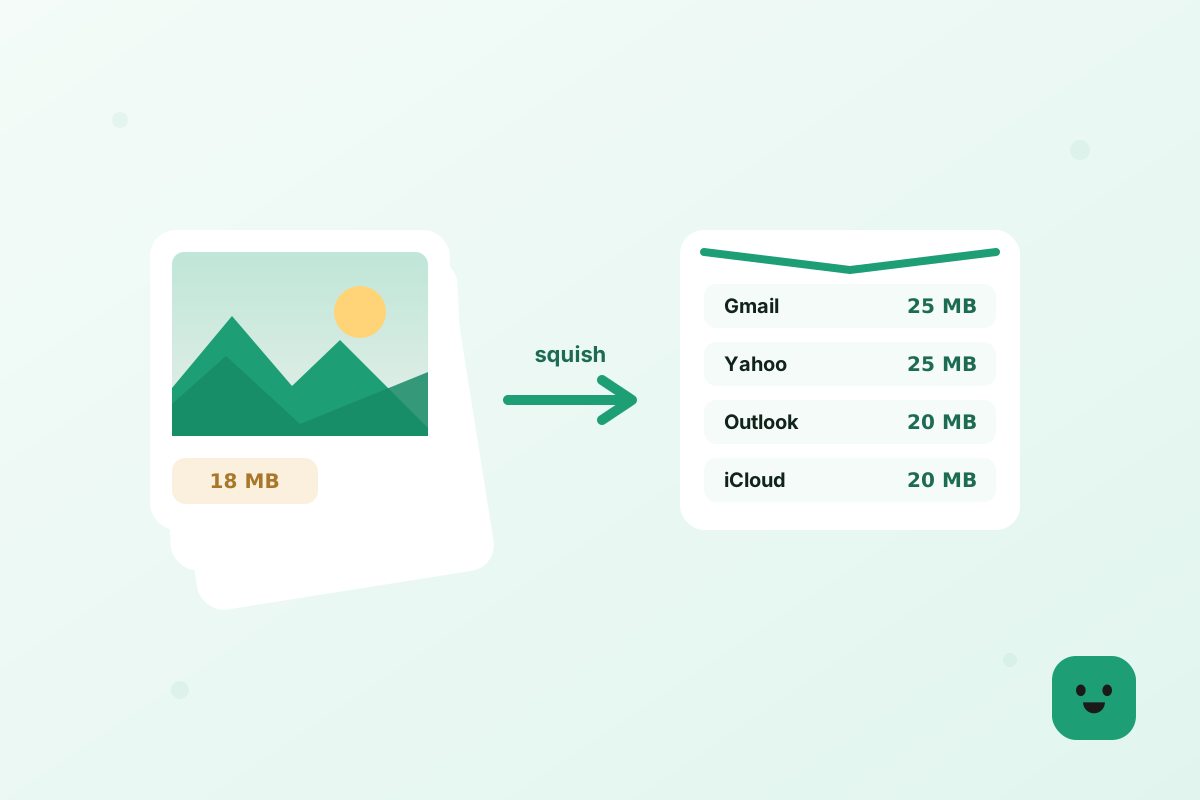
Gmail and Yahoo Mail let you attach up to 25 MB per email, Outlook.com and iCloud Mail allow 20 MB, and Microsoft 365 work accounts default to 35 MB unless an administrator has changed it. Each limit covers the whole message, all attachments together, and files grow by about a third on the way, so the safe working figure is roughly three quarters of the number. Below is each provider in detail, why an attachment under the limit can still bounce, and what to do when yours is too big.
Email attachment size limits at a glance
These are the limits each provider publishes for sending one email, checked against their own help pages in October 2026. They apply to the total size of the message, so five 5 MB photos count the same as one 25 MB file.
The practical upshot: if you want an email to arrive at anyone, on any provider, keep the attachments under about 15 MB in total. That leaves room for the size increase in transit and for the smaller 20 MB limits on Outlook.com and iCloud at the receiving end.
Gmail attachment size limit
Google’s help page puts it plainly: for personal Gmail accounts, the limit is 25 MB. That is the total for all attachments in one email. If you try to attach more than that, Gmail does not refuse the message; it removes the attachment and puts it into the email as a Google Drive link instead, so the recipient opens the file from Drive rather than downloading it from the message.
For work and school accounts on Google Workspace, the limits are set by the organisation’s administrator, separately for sending and for receiving, so they may be lower or higher than 25 MB. If a work Gmail account rejects a file that a personal account would accept, that is why.
The Drive fallback is convenient, but it changes what the recipient gets. They need access to the shared file, the attachment is no longer part of the email itself, and if you later delete the file from Drive, the link stops working. When you want the photos inside the message, shrink them below 25 MB before attaching; resizing a batch of phone photos usually takes it from well over the limit to a fraction of it.
Outlook attachment size limit
Outlook has three different answers depending on the account. For Outlook.com, and other internet email accounts, Microsoft’s help page gives an email size limit of 20 MB, and notes that it includes both the attachments and the email itself. The Outlook desktop app on Windows applies the same 20 MB default to internet accounts such as POP3 and IMAP, whether you add one large file or several that add up to more than 20 MB.
Work accounts are different. Microsoft 365 mailboxes have a default maximum message size of 35 MB for sending and 36 MB for receiving, and an administrator can set any custom limit between 1 MB and 150 MB. Organisations that run their own Exchange Server have a default of 10 MB unless their administrator raised it. If your work Outlook refuses an attachment that your personal account would send, the limit was set by your IT team, not by Outlook itself.
When Outlook does refuse, the error usually says the file is bigger than the server allows and suggests sharing a link instead. That is good advice for large documents and video. For photos, the faster fix is often to make the files smaller: a resized phone photo is a few hundred KB, so a dozen of them fit easily under even the 10 MB default.
Yahoo Mail attachment size limit
Yahoo’s help page states that attachments must not exceed 25 MB in total file size. Like Gmail, that is the combined size of everything attached to one message, and it applies to email you send as well as email you receive in Yahoo Mail.
The receiving side matters more than people expect. Even if your provider would send a large message, the recipient’s provider has its own ceiling: a 24 MB email from Gmail to a Yahoo address is fine, but the same email to an Outlook.com or iCloud address is over their 20 MB limit. When you do not know what the other person uses, plan for the smallest limit on the list.
iCloud Mail attachment limit and Mail Drop
Apple lists the iCloud Mail limit for incoming and outgoing messages as 20 MB, or up to 5 GB with Mail Drop turned on. Mail Drop is Apple’s answer to big attachments: when a message is too large, Mail offers to upload the attachments to iCloud and send the recipient a download link instead.
According to Apple, Mail Drop handles attachments up to 5 GB, each attachment expires after 30 days, and the files do not count against your iCloud storage. There is a separate Mail Drop storage limit of 1 TB, which you would only reach by sending a lot of very large files. It works from Mail on iPhone, iPad and Mac, and from iCloud Mail on the web.
The catch is the same as with Gmail’s Drive links: the recipient gets a link that expires, not files in their inbox. For photos that someone will want to keep, it is often better to shrink them so they fit inside the 20 MB message itself.
Why an attachment under the limit can still bounce
Email was designed for text, so attachments are converted into text before they are sent. That conversion makes them bigger. Microsoft’s documentation for Exchange Online describes an additional 33% encoding increase for messages that leave its datacenters, and its webmail even restricts what you can send to 25% less than the configured limit to allow for it. In plain terms, a 19 MB set of photos on your computer can count as roughly 25 MB on the mail server.
That is why the safe working figure is about three quarters of the published limit: around 18 MB for a 25 MB provider and 15 MB for a 20 MB one. The text of the email, signatures and embedded images add a little more on top. If a message keeps bouncing even though the files add up to just under the limit, the encoding overhead is almost always the reason.
The other common cause is the recipient. Your provider may accept a 24 MB email, but if the person you are writing to is on a 20 MB service, or a company mailbox with a lower limit, their server rejects it and you get the bounce. Sending smaller files avoids both problems at once.
What to do when your attachment is too big
For photos, make them smaller before you attach them. Phone photos are usually 3 to 12 MB each, but nobody needs that many pixels to look at a picture on a screen. Resize images for email so the long edge is about 1600 pixels, and each photo drops to a few hundred KB, which means 15 to 20 of them fit in one email on any provider. If the dimensions must stay the same, you can compress JPG files instead and still save half or more.
EMTry the toolResize image for emailOpenFor a single big photo you want to look its best, our guide on how to email large photos explains the right size and quality settings, from phone or computer. For whole albums, the guide to send a large number of photos via email shows how to split a batch across a few messages, and when one shared link is the better route.
For files that cannot be made smaller, such as long videos, design files or full-resolution originals for printing, use a link. Upload to Google Drive, OneDrive, Dropbox or iCloud, or let Gmail and Mail Drop do it for you, and send the link in the email. The message stays tiny and the limit no longer matters.
- Gmail and Yahoo: 25 MB per email. Outlook.com and iCloud Mail: 20 MB.
- Microsoft 365 work accounts: 35 MB by default; your administrator can change it.
- Attachments grow by about a third in transit, so plan on three quarters of the limit.
- Too big? Resize photos to about 1600 px, or send a link for files you cannot shrink.